Summary
“PO
Requisition Account Generator Workflow” (POWFRQAG) gets triggered to default
the distribution accounts – and usually this WF is customized in most of the
EBS implementation projects to support the business rule for defaulting charge
account.
This process
also gets retriggered automatically for change in some entities like (category,
requestor etc.) depending on the line type of the PR. But the process does not
retrigger for update in any other field (or DFF) in PR line and that’s where
this extension is required.
This solution
below will describe how to retrigger the “PO Requisition Account Generator
Workflow” for change in ‘Quantity’ and this is limited to the iProcurement page
[iProcurement >> Shopping Cart >> Checkout >> Requisition
(Lines)] only – and it is not applicable to the ‘Requisitions’ Forms.
Solution Approach
All the
fields for PR line are available in the entity object oracle.apps.icx.por.schema.server.PoRequisitionLineEO.
The account generator gets retriggered for the attributes where the property AccountLineBizAttrSet is set to ‘Y’
So, here we
need to extend the PoRequisitionLineEO to xxcusPoRequisitionLineEO to set the AccountLineBizAttrSet property of ‘Unit
Price’ attribute to ‘Y’
Technical Details
Following
steps to be done to address the customization:
- Copy and download entire directory structure and files from $JAVA_TOP/oracle/apps/icx
- To
extend the PoRequisitionLineEO, create a new project and then open the
package oracle.apps.icx.por.schema.server in the project. Now select the
EO in the “Extends Entity” field.Save the new EO as xxcusPoRequisitionLineEO.

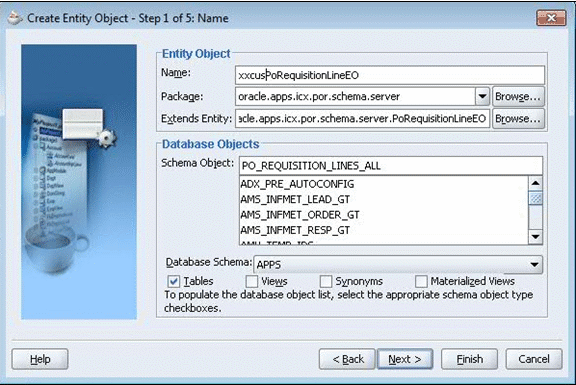
- Entity
Object Wizard, click the “New from Table…” button and select your target
attribute(s) [e.g. QUANTITY]. Click
“OK”. Accept the defaults for the
rest of the steps in the wizard.

- In
the System Navigator panel, highlight the EO created above. The Structures panel will list all the
attributes in the EO.

- Highlight the attribute QUANTITY in the Structures panel and the right-click to select the “Edit” option. The Attribute Editor will come up.
- Select
Properties from the left-hand panel. Enter “AccountLineBizAttrSet” in the
name field and “Y” in the value field.
Click “Add”, then Hit “OK” and save the changes.

- Now
create the substitution for the parent (seeded) EO.

Installation
- Copy xxcusPoRequisitionLineEODefImpl.java and xxcusPoRequisitionLineEOImpl.java to $JAVA_TOP/oracle/apps/icx/por/schema/server.
- Compile java files using javac command and change the permission of the class files to 777
- Copy xxcusPoRequisitionLineEO.xml $JAVA_TOP/oracle/apps/icx/por/schema/server and change the permission to 777
- FTP
the substitution file xxcusIProc.jpx (in general this file is created
under ‘MyClasses’ folder where the project is created) and execute the
following command:
java oracle.jrad.tools.xml.importer.JPXImporter $JAVA_TOP/oracle/apps/icx/por/schema/server/xxeocIProc.jpx -username apps -password <password> -dbconnection "(DESCRIPTION=(ADDRESS_LIST=(ADDRESS= (COMMUNITY=TCP_COMMUNITY)(PROTOCOL=TCP)(Host= <host>)(Port=<port>)))(CONNECT_DATA=(SID= <sid>)))"
- Bounce OACORE and OC4J in the middle tire.
